How to Redeem Ragdoll Soccer Codes
Find the shop, open the Codes tab, and claim Coins without guesswork.
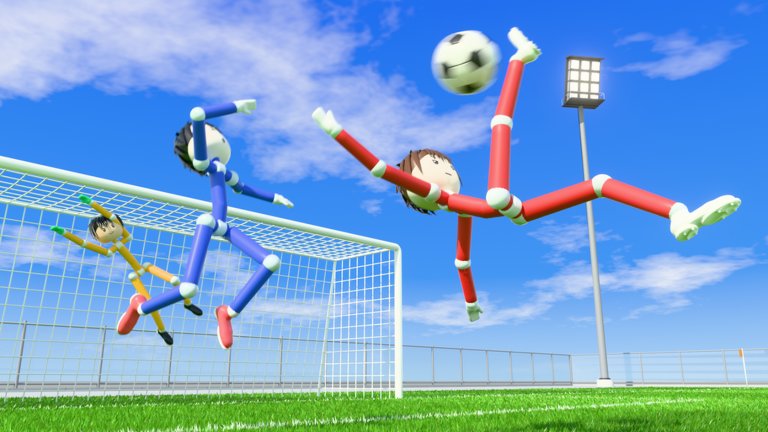
Redeeming codes in Ragdoll Soccer is simple once you know where the shop lives. The game is a physics-based Roblox soccer experience by Ragdoll Athletics (released mid-October 2026, still early development), and the Codes UI sits inside the shop rather than as a separate billboard on the pitch. This walkthrough covers the exact click path, what you should see after a success, and how to fix every common failure message so you do not lose a limited gift like WELCOME.
If you only need the live list, jump back to the Codes Hub. If you have not played a match yet, skim Getting Started after you claim Coins so the currency has somewhere useful to go.
Before you start
Confirm these basics:
- You are in a live Ragdoll Soccer server (not just the Roblox website page).
- Your character has finished spawning on the pitch or lobby area.
- You can see the regular HUD—shop access is on the left side of the screen.
- You know which account you want the Coins on (codes are per Roblox account / experience data, not per device).
Private friends-only servers, Clubs queues, Practice mode, 4v4 quickplay, and 8v8 pro servers all use the same account inventory. You do not need to be in a ranked referee match to redeem.
Step-by-step redeem path
1. Open the shop from the left side
Look at the left side of your screen for the shop button. It is part of the persistent HUD, not a world object you walk up to. Click or tap it once. If nothing opens, wait a second for the UI to load—early-development experiences sometimes delay shop panels right after teleport.
2. Switch to the Codes tab
Inside the shop, find the Codes tab among the shop sections. Do not buy an item yet; you only need the Codes panel. The tab may sit beside cosmetic or currency pages depending on the current UI revision.
3. Enter the code exactly
Click the text field and type the code. For the current starter gift, enter:
WELCOMEUse plain characters—no spaces before or after. Prefer typing over autocorrect on mobile. Paste only if you are sure your clipboard has no hidden whitespace.
4. Press Redeem
Hit Redeem (or the equivalent confirm button on the Codes tab). Wait for the success toast or reward popup. You should see 250 Coins credited for WELCOME.
5. Verify your balance
Close and reopen the shop if the balance label did not refresh. Coins are account-bound soft currency for shop purchases as the catalog expands. They are not match score and will not appear as a ball skin by themselves.
Visual checklist
| Step | Where | Action | Expected result |
|---|---|---|---|
| 1 | Left HUD | Open shop | Shop panel appears |
| 2 | Shop tabs | Open Codes | Code input field visible |
| 3 | Input | Type WELCOME | Field shows the code |
| 4 | Codes tab | Redeem | Success message |
| 5 | Shop / HUD | Check Coins | +250 Coins |
Troubleshooting failed redeems
Typo or extra space
Most failures are simple spelling mistakes. WELCOME has no numbers and no punctuation. WELLCOME, WELCOM, or WELCOME (trailing space) will fail. Clear the field and retype slowly.
Wrong capitalization
Some Roblox experiences treat codes as case-sensitive. Enter WELCOME in all caps as listed on the Codes Hub. If you typed welcome and it failed, retry with uppercase.
Already redeemed
Each code generally works once per account. If you already claimed WELCOME, Redeem will reject repeats even on a new device. Coins stay on the account that claimed them—there is no second gift for alts unless the developers publish a different code.
Expired or rotated code
Early-development games retire strings after launch pushes, visit milestones, or economy tweaks. Ragdoll Soccer already crossed 2M+ visits with thousands concurrent, so rotations are likely over time. If the UI says expired, check the Active table on the Codes Hub. Do not trust week-old screenshots from random comments.
Shop button missing
Rare causes:
- UI still loading after join
- You are in a cutscene-like camera state (wait it out)
- Screen resolution or mobile safe-area cropped the left HUD—rotate the device or reset Roblox graphics quality
- A temporary client bug—rejoin the experience
Rejoining usually restores the left-side shop. If the Codes tab itself is missing after a patch, wait for a hotfix and recheck Updates.
Lag or double-click errors
High ping can make the first Redeem click feel ignored. Wait two seconds before clicking again. Double submits sometimes show a confusing error even when the first click succeeded—verify your Coin balance before assuming failure.
Wrong game
Confirm the experience title is Ragdoll Soccer by Ragdoll Athletics (universe linked from this wiki). Other ragdoll or soccer places will not accept these codes.
Mobile vs desktop notes
On desktop, mouse click the left shop control, then tab to Codes. On mobile/tablet, tap the left shop icon carefully so you do not also trigger movement. If the on-screen keyboard covers Redeem, dismiss it slightly or scroll the shop panel until the button is free. Controllers follow the same HUD focus order once the shop is open.
After you redeem: what to do with Coins
250 Coins from WELCOME is a starter cushion, not an endgame wallet. Sensible next steps:
- Finish a Practice mode session so physics timing feels natural before spending
- Queue 4v4 quickplay or Clubs (4v4 with friends) to earn more Coins through play
- Sample 8v8 pro servers later when you want referees, penalties, free kicks, throw-ins, VAR, and offsides
- Read role advice on the Tier List before buying cosmetics you will never equip
Codes never replace mechanical skill. Ragdoll Soccer rewards timing, positioning, and reading chaotic physics collisions. Spend Coins on items you will keep using across modes.
Safety reminders
- Only redeem inside the official shop Codes tab.
- Nobody from “support” needs your password, backup codes, or Roblox cookie to grant Coins.
- Fake websites that ask you to log in to “unlock WELCOME” are phishing.
- Executors and injected scripts are unrelated to official codes—see the Scripts Hub for risk context if that is how you found this page.
Related links
- Codes Hub — active and expired tables
- Getting Started — first matches and HUD basics
- Guides Hub — deeper mechanics as pages publish
- Updates — patch notes that often accompany new codes
- Players — community and roster-style pages
- Official links — experience and group pointers
Redeem WELCOME once, confirm +250 Coins, then get back on the pitch. When the next code appears, reuse this same left-shop → Codes → Redeem path without hunting menus again.
Frequently Asked Questions
Quick answers for Ragdoll Soccer players.
Where is the shop button in Ragdoll Soccer?
On the left side of the HUD. Open it, then choose the Codes tab to enter a promo string like WELCOME.
How do I redeem the WELCOME code?
Join the game, open the left-side shop, open Codes, type WELCOME exactly, press Redeem, then confirm you gained 250 Coins.
Can I redeem the same code twice?
Usually no. Codes are one redeem per account. If WELCOME already credited Coins once, further attempts will fail.
Do I need to be in a pro 8v8 server to redeem?
No. Redeem from the shop in any lobby or mode. Coins stay on your account across quickplay, Clubs, Practice, and pro servers.
What if Redeem does nothing?
Wait for UI lag, check for typos, rejoin if the shop is missing, and verify your Coin balance in case the first click already succeeded.